Learn how to efficiently create a brand kit for your emails using ActiveCampaign's AI features, including importing logos, colors, and fonts.
Introduction
Welcome to this tutorial on creating your first email brand kit using ActiveCampaign's AI capabilities. In just a few simple steps, you'll be able to set up a cohesive branding experience for your emails, including logos, colors, and fonts. Whether you're establishing a new brand or enhancing an existing one, this guide will walk you through the process seamlessly.
How to Instructions
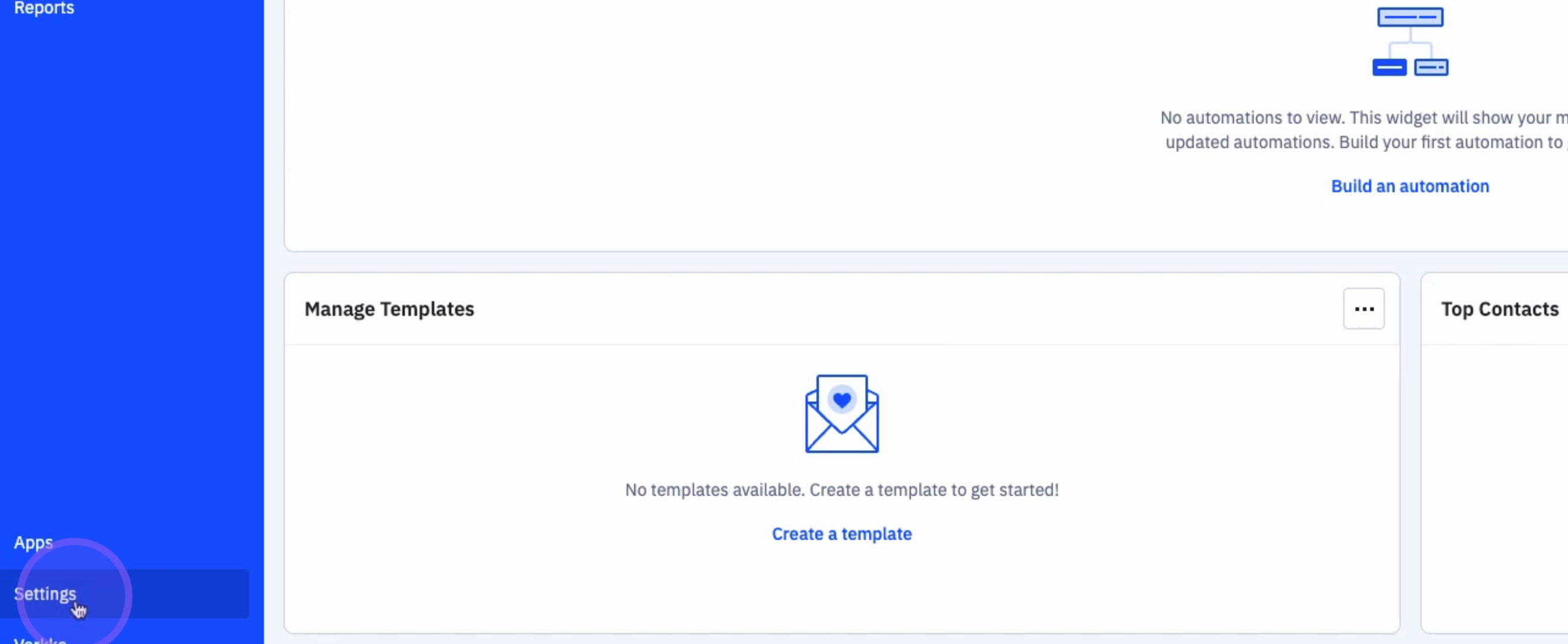
1. Access Settings
To begin, click on Settings.
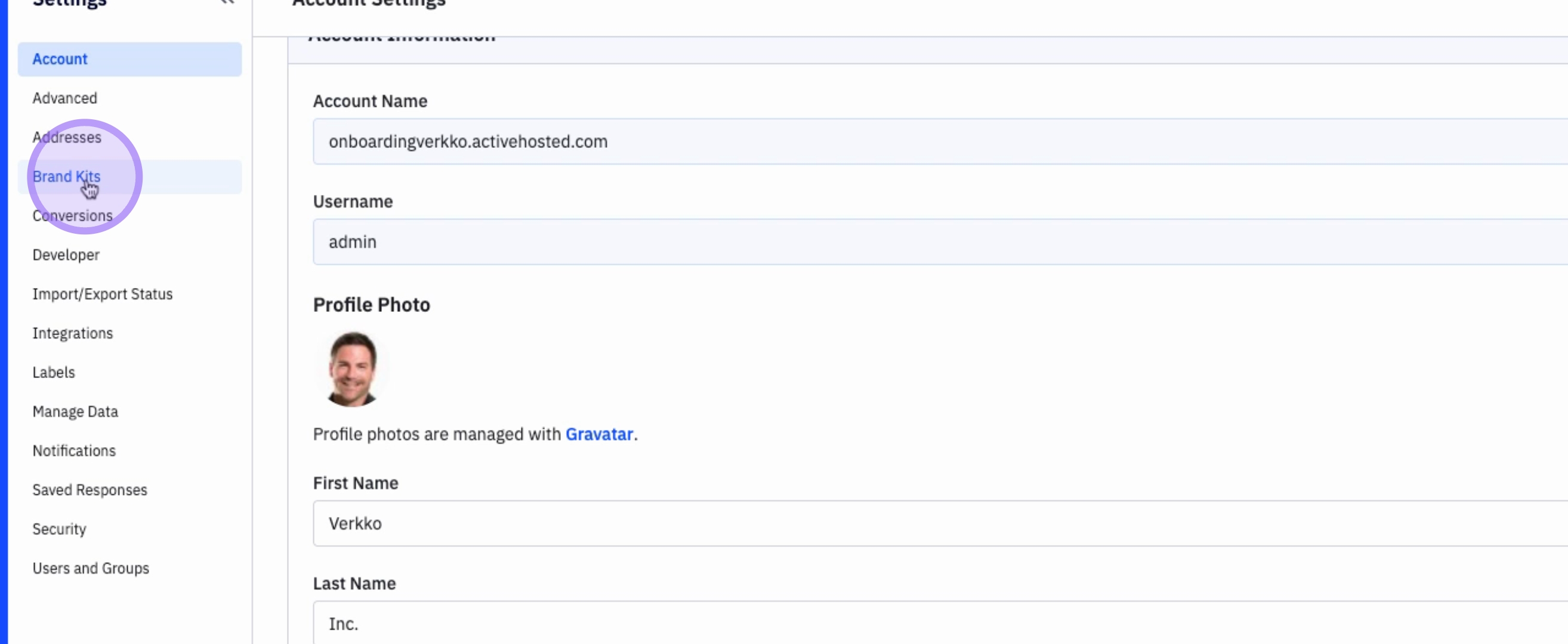
2. Navigate to Brand Kits
Next, click on Brand Kits.
3. Enter Your Website URL
You can then enter the URL of your website.
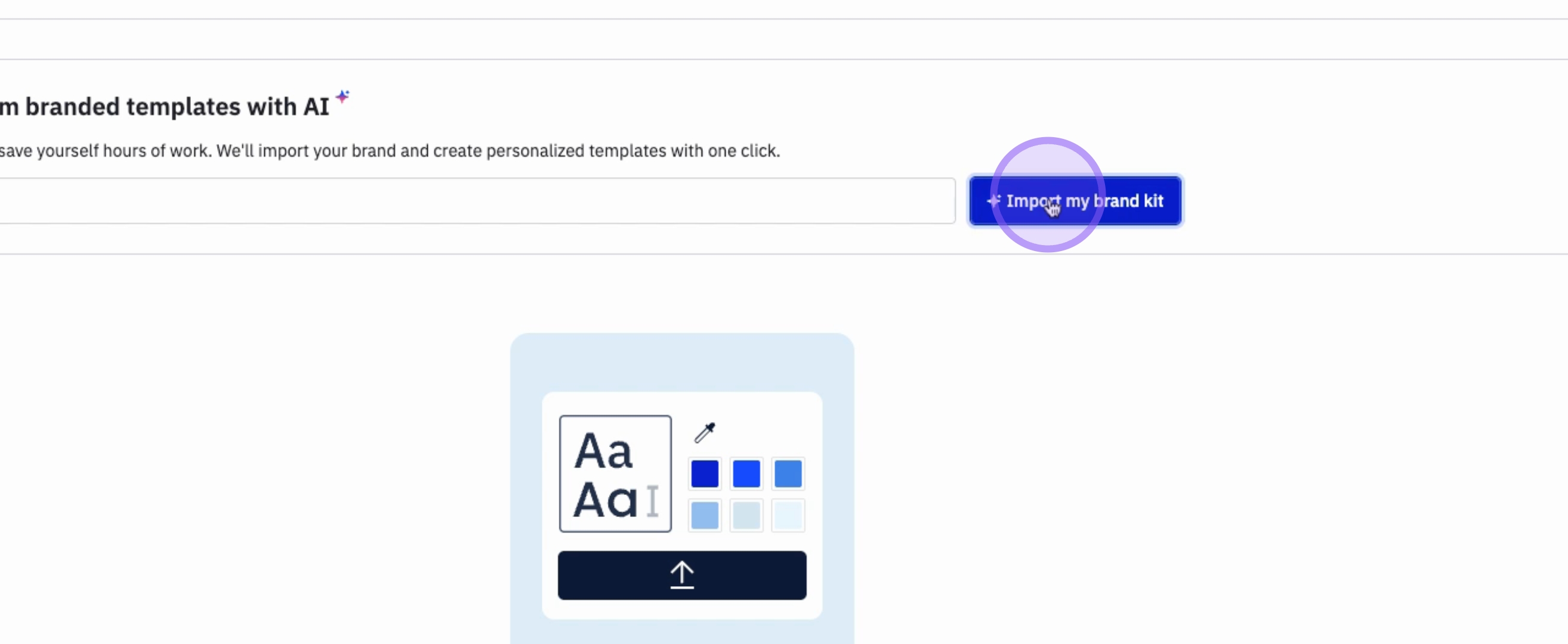
4. Import Your Brand Kit
Click on Import my brand kit.
5. Review Imported Brand Elements
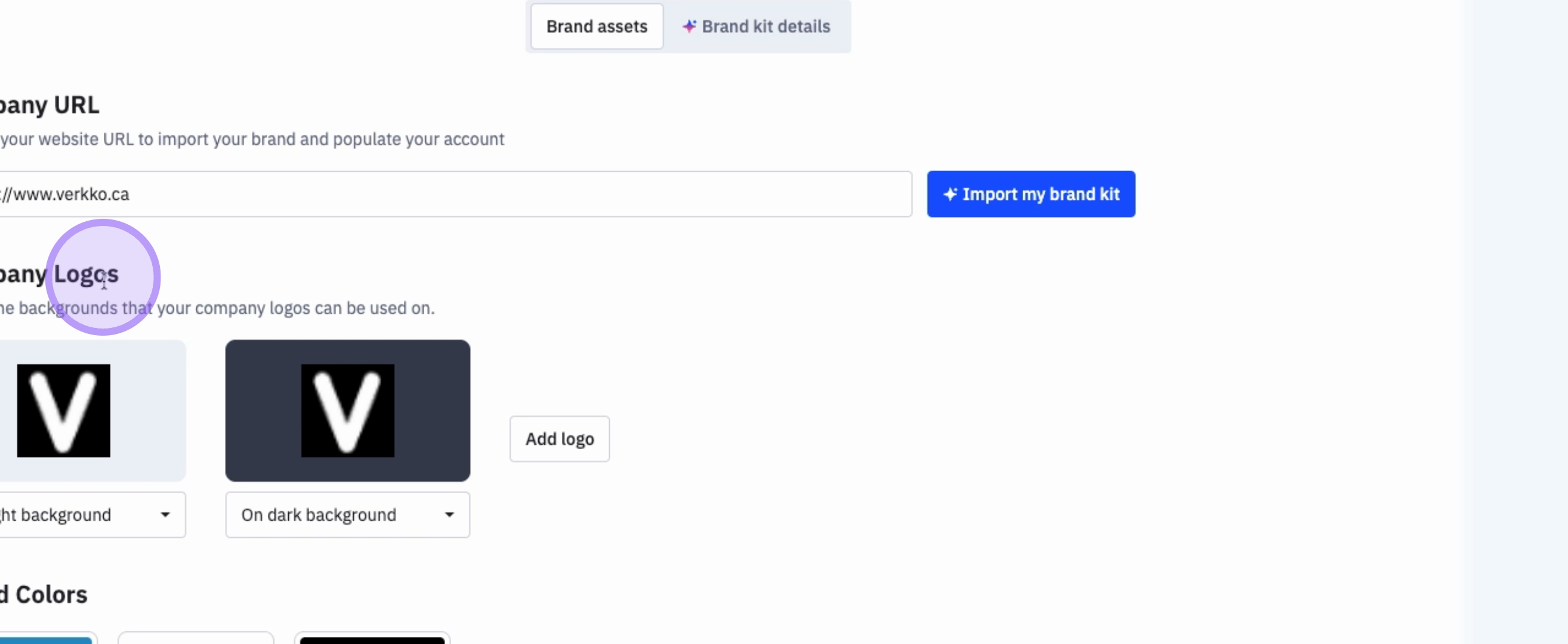
ActiveCampaign will gather your company logos, brand colors, fonts, social links, and create an email preview for your use.
6. Customize Your Brand Kit
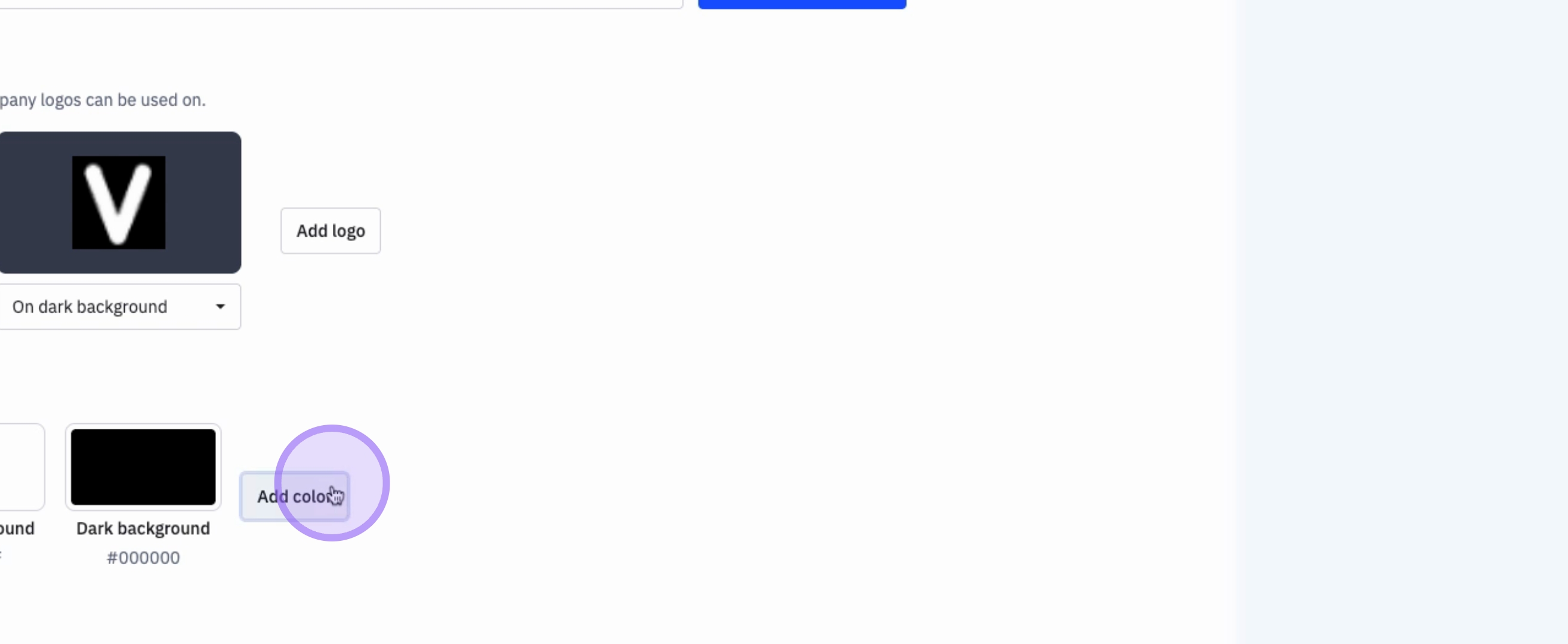
You can also add different logos, colors, and complete your brand kit as needed.
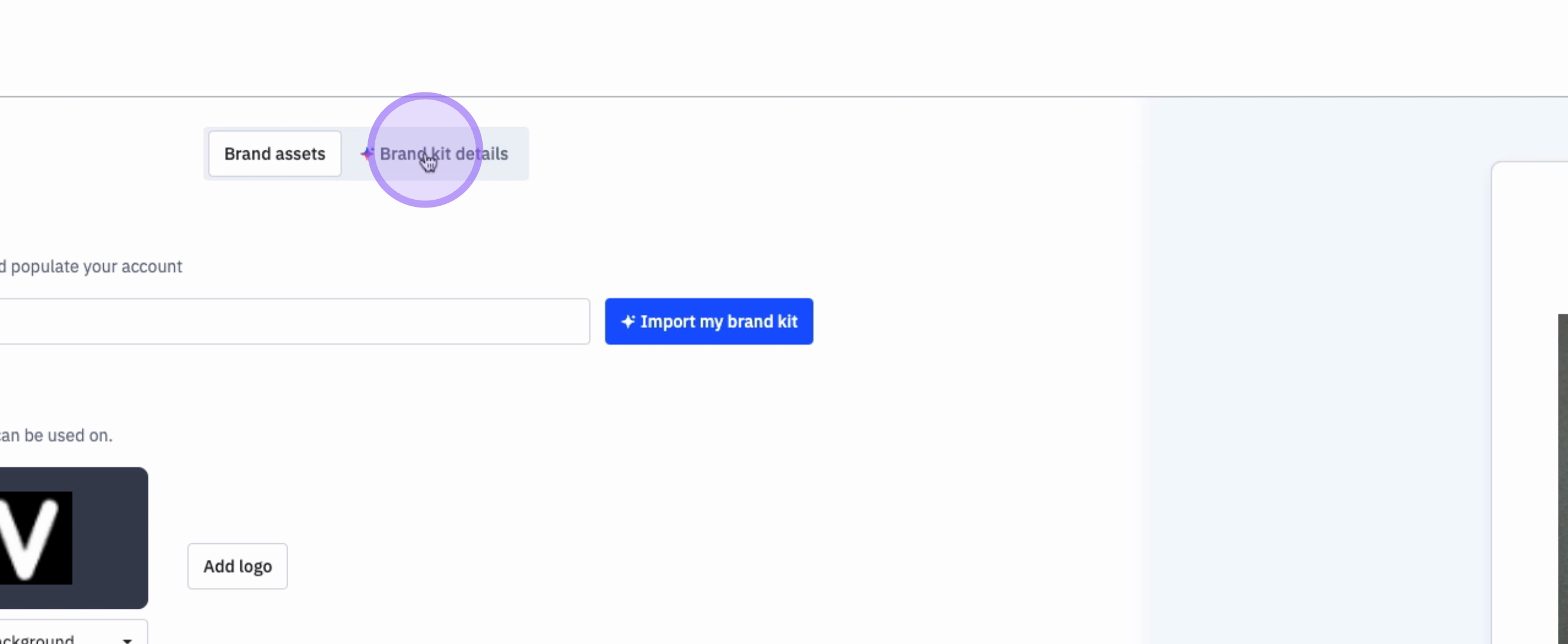
7. View Brand Kit Details
When you click on Brand Kit Details, you will see that ActiveCampaign has added your company name, industry, and mission statement.
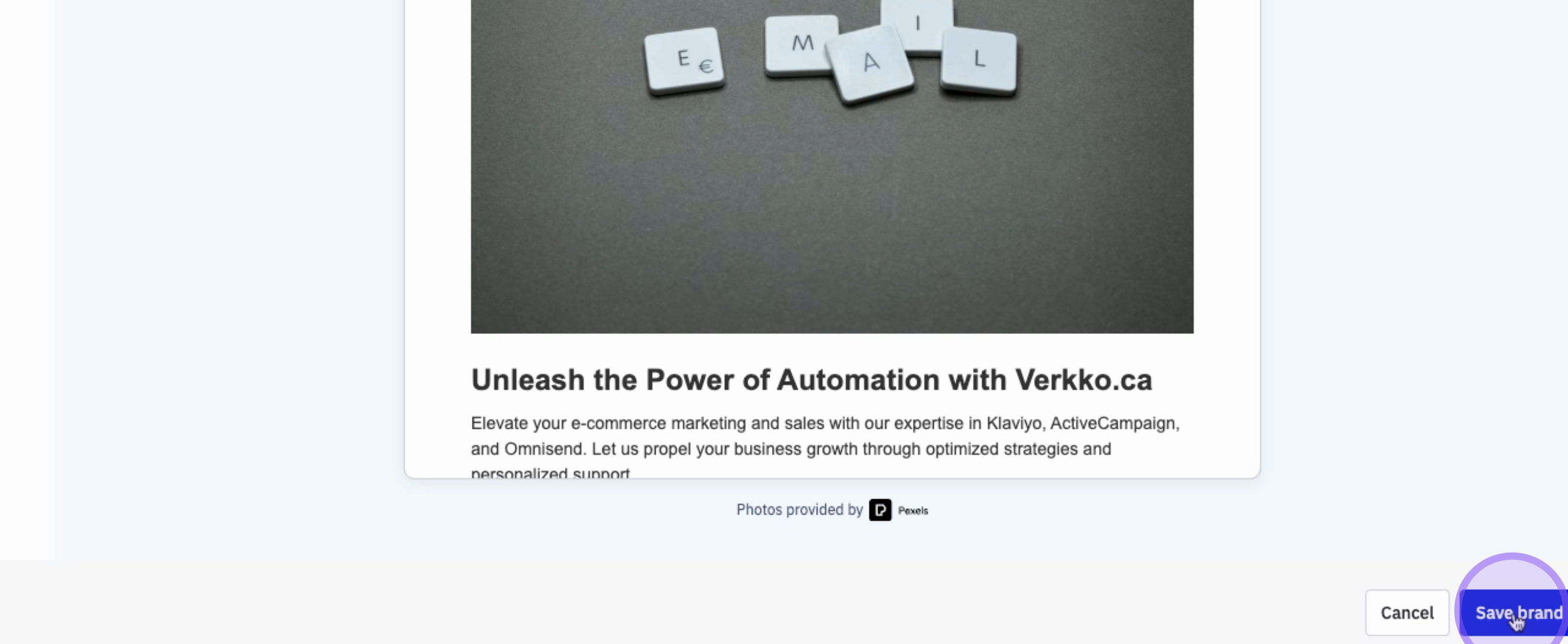
8. Save Your Brand Kit
Once you are satisfied with your brand kit, click on Save Brand.
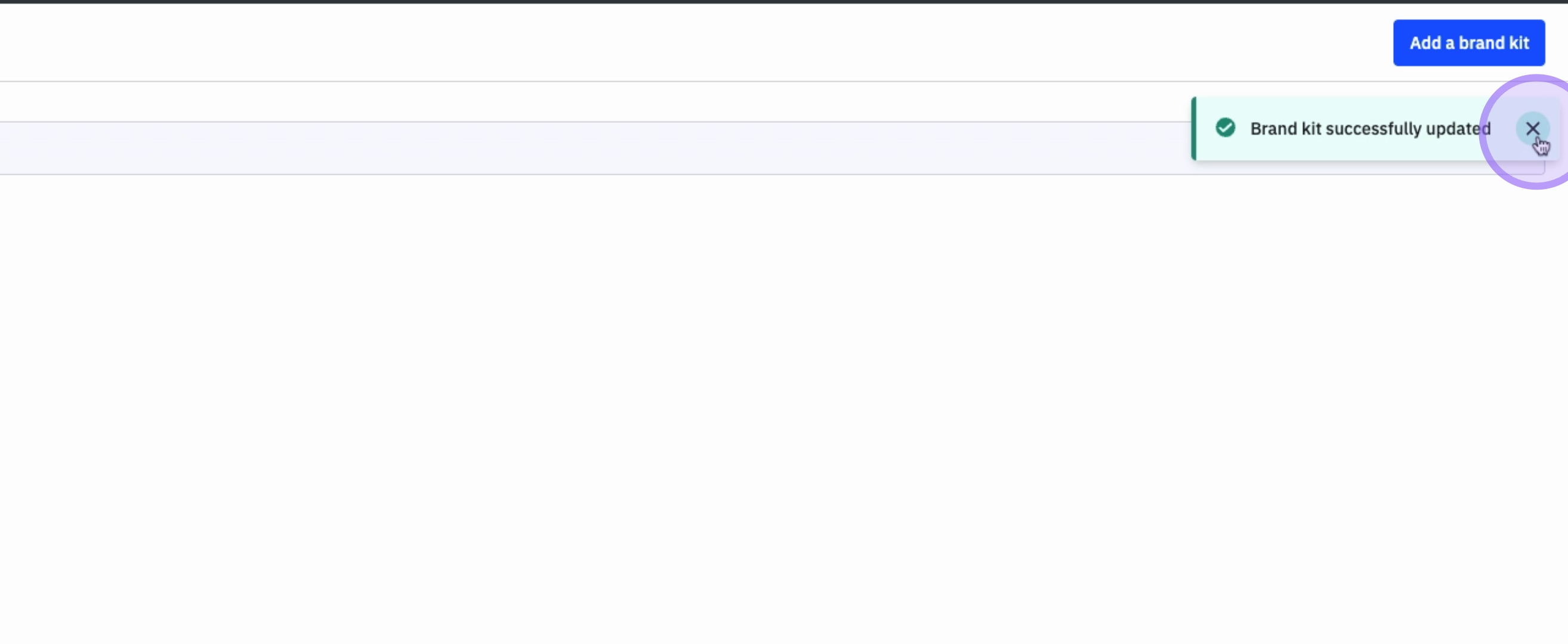
9. Confirmation of Brand Kit Creation
Your brand kit has now been successfully created.
10. Create Additional Brand Kits
You can create multiple brand kits for different brands as needed.
11. Add a New Brand Kit
Click on Add a Brand Kit to start the process for another brand.
Conclusion
By following these steps, you will have successfully created and customized your brand kit using ActiveCampaign. This will help ensure a consistent and professional look for your emails, enhancing your brand identity.