This tutorial provides a step-by-step guide on how to add individual users and groups of users to your ActiveCampaign account, including setting permissions and limits.
Introduction
Managing users effectively is crucial for optimizing your ActiveCampaign experience. In this tutorial, we will guide you through the process of adding both individual users and groups to your account. You will learn how to set their permissions and limits, ensuring that your team has the necessary access to perform their roles efficiently. Let's get started with the steps to manage your users.
How to Instructions
1. Accessing User Settings
To begin, click on Settings within your ActiveCampaign account. Then, navigate to Users and Groups to manage your users.

2. Adding a New User
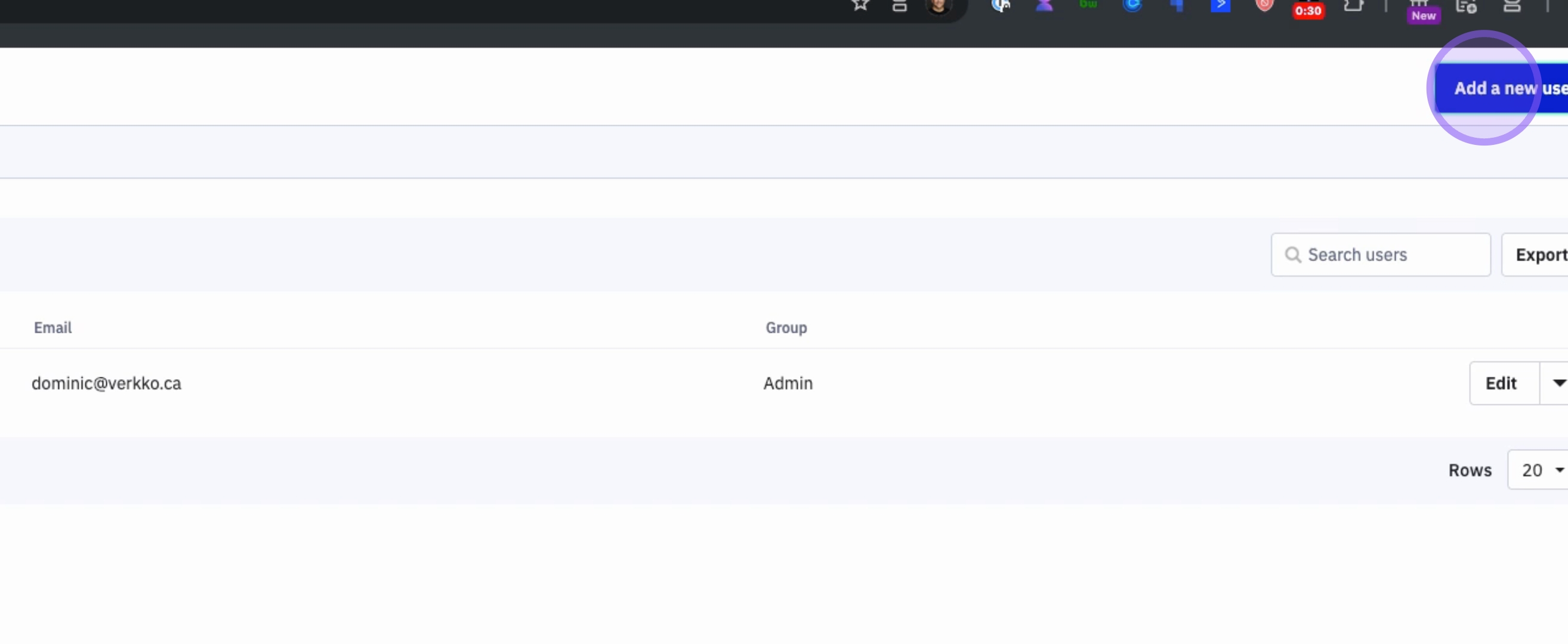
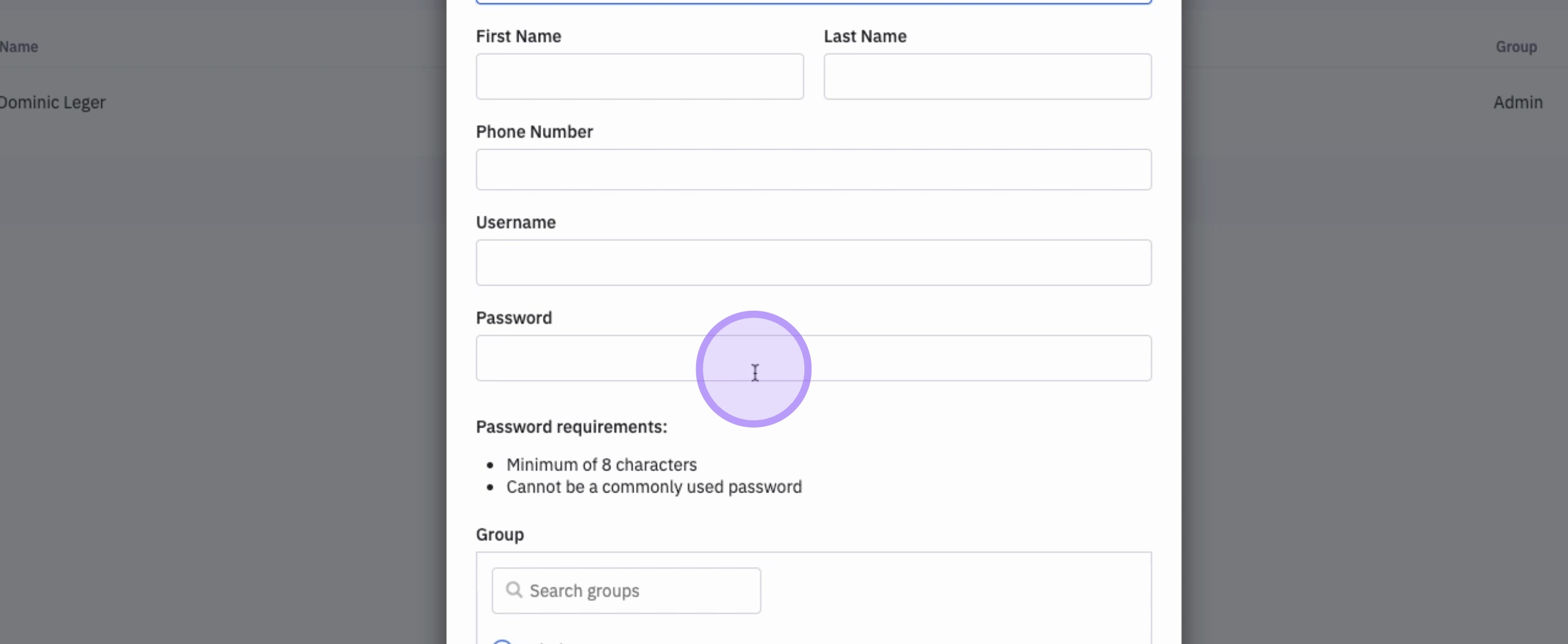
To add a new user, click on the Add a New User button located at the top right of your window. From there, you can enter the necessary user information.
3. Sending Login Information
Once the user has been added, it is essential to send them their login information. Alternatively, you can instruct the user to click on Forgot Password using their email to reset their own password.
4. Adding a Group of Users
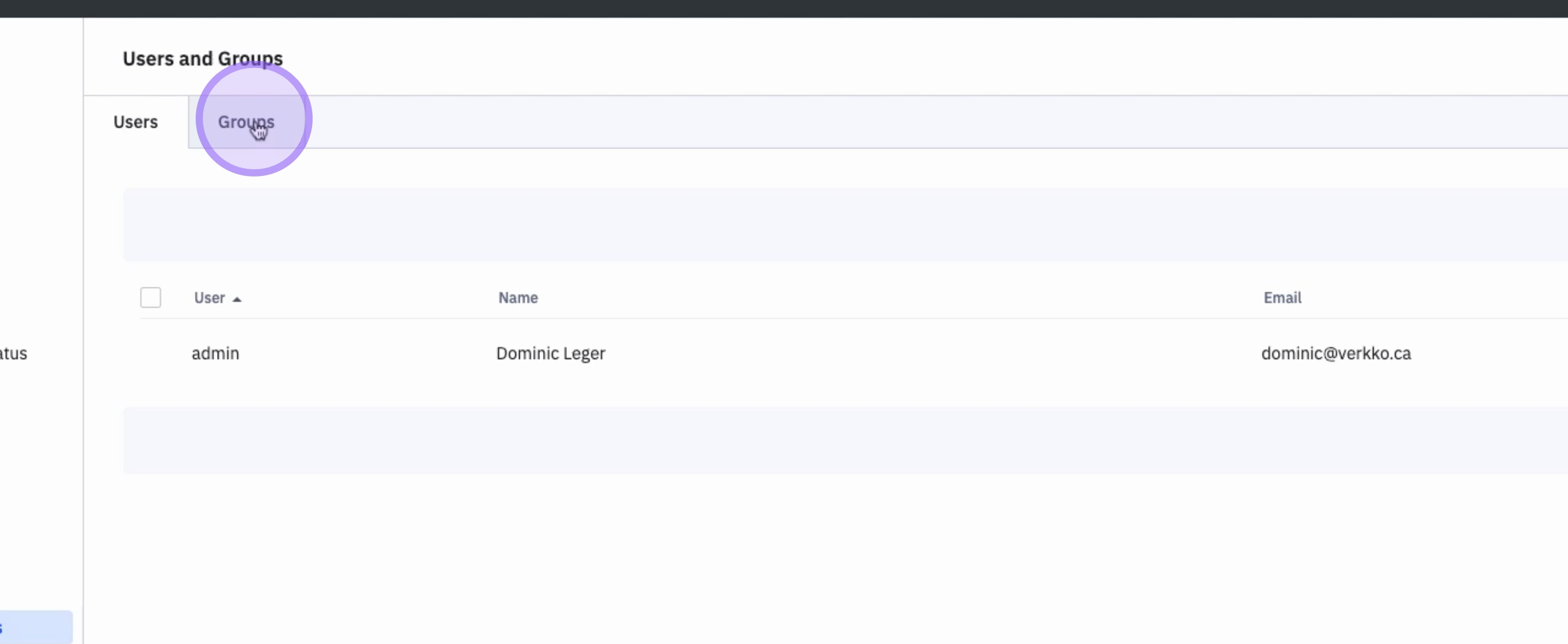
To add a group of users, click on Groups, then select Add New Group.
5. Configuring Group Settings
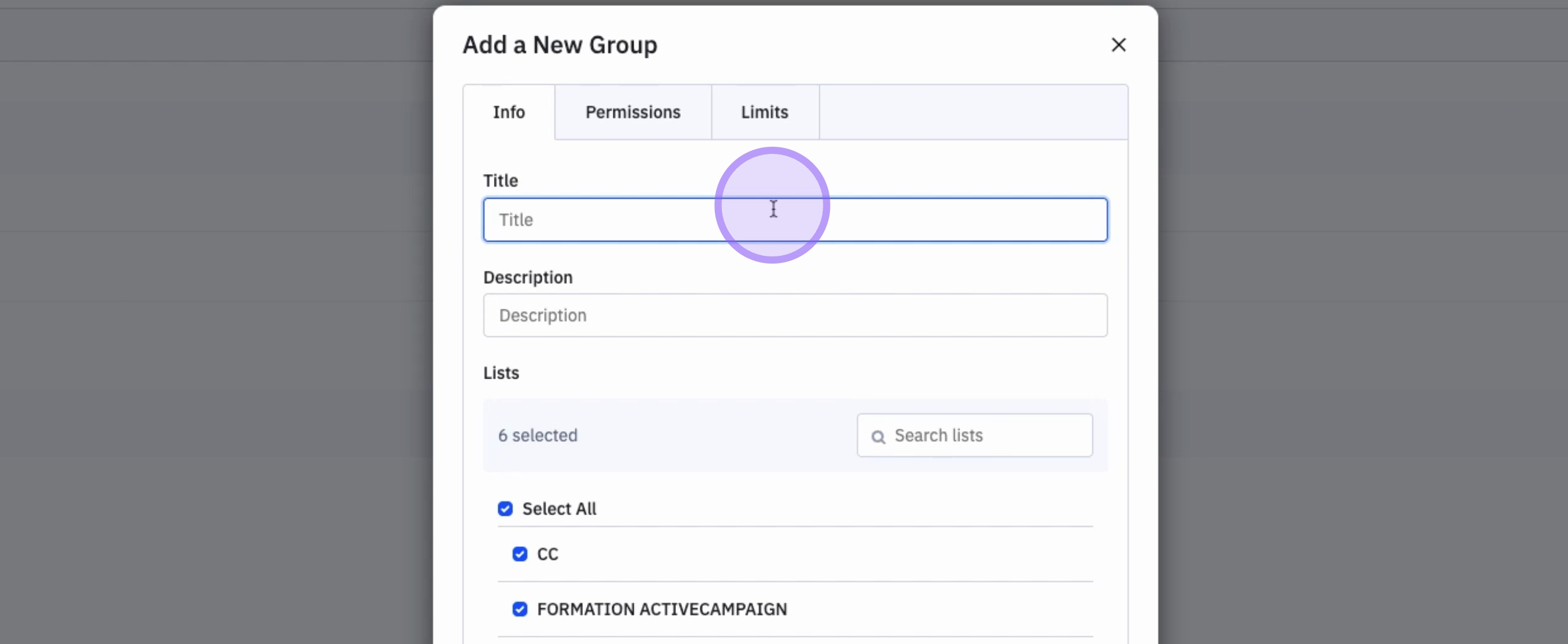
In the group settings, you can specify the group's name and description. Additionally, you can set permissions for this group.
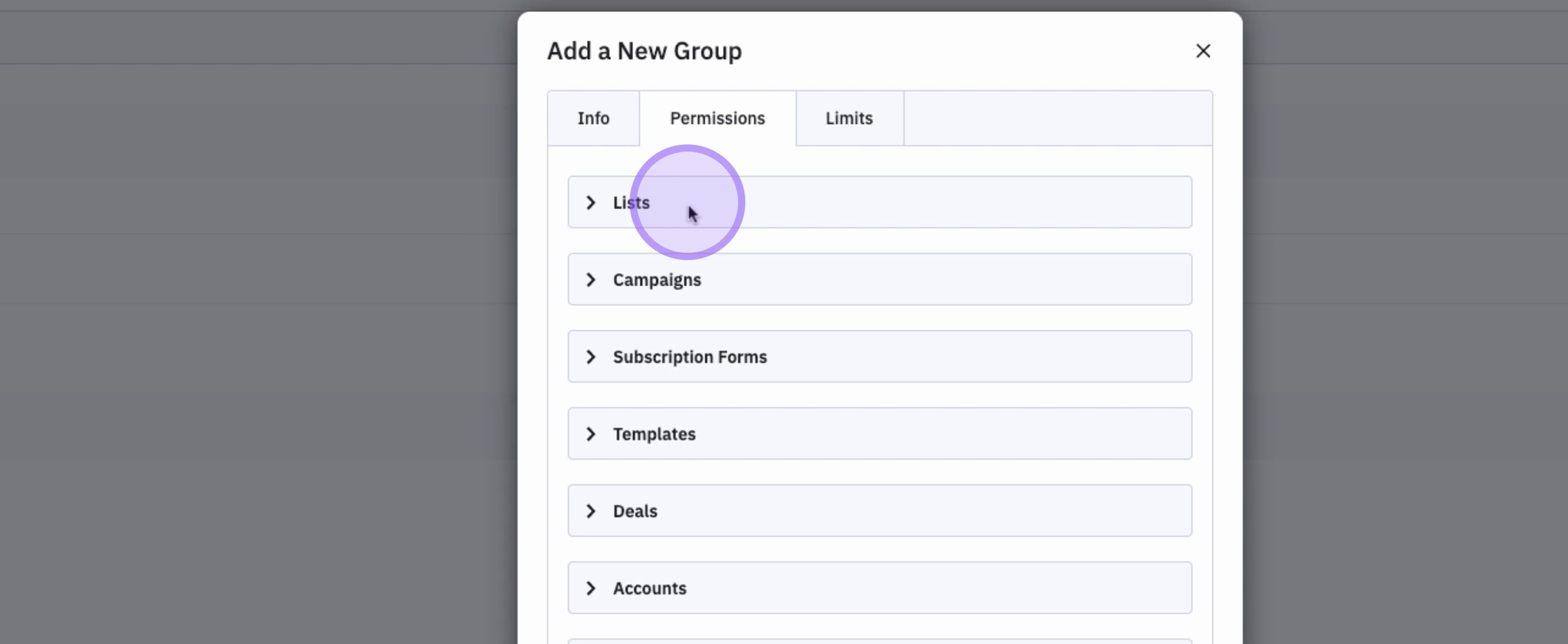
6. Setting Permissions
This is how you determine which users have access to different parts of ActiveCampaign. You can set various permissions regarding lists, campaigns, subscription forms, templates, deals, accounts, contacts, automations, reports, saved responses, and landing pages.
7. Adding Limits to the Group
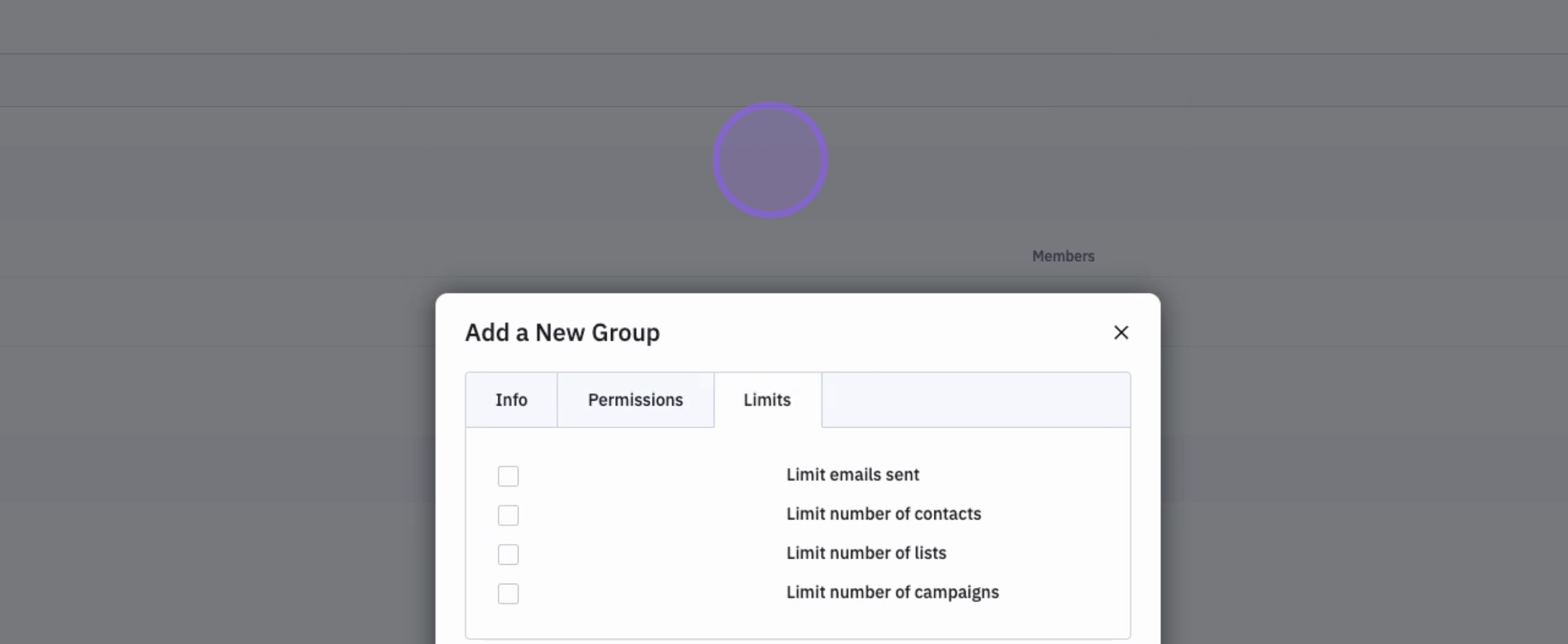
You can also add limits to a group of users by clicking on limits. This allows you to restrict the number of email sends, contacts, lists, and campaigns available to the group.
8. Assigning Users to Groups
Once your group has been set, you can assign different users to your various groups, ensuring that everyone has the appropriate access levels.
Conclusion
By following these steps, you will effectively manage users and groups within your ActiveCampaign account, enhancing collaboration and security for your team.